Setting Up Cloud Gaming for Apex Legends on Mobile Devices
Discover how to play Apex Legends on your mobile device using cloud gaming platforms like GeForce Now and Xbox Cloud Gaming. This step-by-step guide covers setup, performance tips, and troubleshooting to help you game smoothly anywhere.
Cloud Gaming Brings Apex Legends to Mobile
Introduction
Mobile gaming has reached new heights, and titles like Apex Legends are now accessible without needing a high-end PC or console. Through cloud gaming, players can stream full versions of PC and console games on their smartphones or tablets. This shift is transforming the way we play, offering flexibility and high-quality gameplay even on the go.
Unlike native mobile games, Apex Legends is no longer available as an official mobile app. However, using cloud gaming services like GeForce Now and Xbox Cloud Gaming, players can access the full game remotely. This guide will walk you through how to set up cloud gaming for Apex Legends on mobile, ensuring smooth performance and an immersive experience.
Choosing the Right Cloud Gaming Platform for Apex Legends
There are multiple cloud gaming platforms, but only a few offer seamless support for Apex Legends. The most popular and accessible options include GeForce Now and Xbox Cloud Gaming. Choosing the right one depends on your current hardware, subscriptions, and personal preferences.
GeForce Now
GeForce Now is NVIDIA’s cloud gaming service that allows users to stream games they already own on platforms like Steam, Epic Games Store, or Origin.
- Availability: Global, with strong server infrastructure
- Compatibility: Android (5.0+), iOS (via Safari), Windows, macOS, Chromebooks
- Game Access: Requires you to own Apex Legends on Steam or Origin
- Subscription Tiers: Free (limited sessions), Priority, and Ultimate tiers for enhanced performance
- Key Features: High-quality streaming, adjustable resolution, ultra-low latency options
Xbox Cloud Gaming
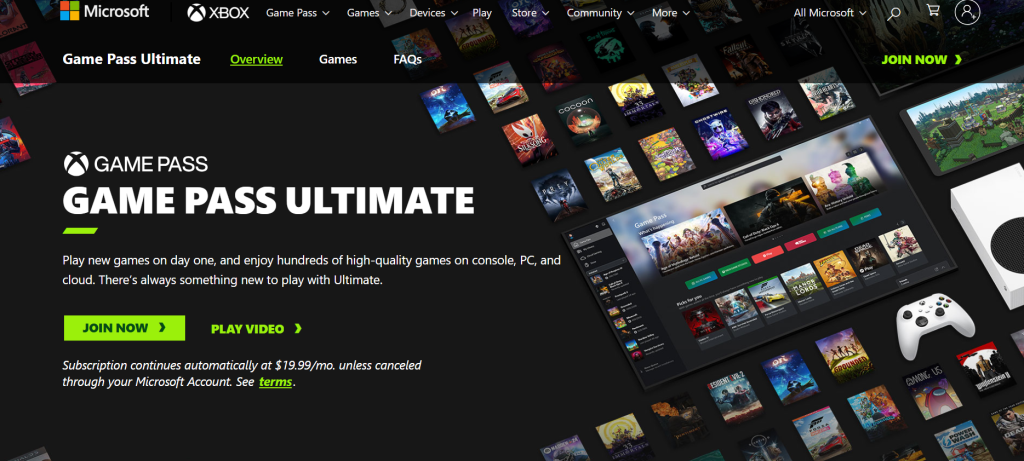
Xbox Cloud Gaming is part of Xbox Game Pass Ultimate. It offers access to a wide library of games, including Apex Legends, without requiring game ownership on other platforms.
- Availability: Available in supported regions through Game Pass
- Compatibility: Android (Xbox Game Pass app), iOS (via Safari), Windows
- Game Access: Included in Game Pass library
- Subscription: Requires Game Pass Ultimate ($16.99/month)
- Key Features: Seamless controller support, easy access for casual gamers
Recommendation: If you already own Apex Legends on Steam or Origin, GeForce Now is a strong option. For simplicity and access to many other games, Xbox Cloud Gaming is ideal.
Step-by-Step Setup Guide for Cloud Gaming Apex Legends on Mobile
Setting up Apex Legends on mobile using cloud gaming is straightforward but requires a few important steps. Follow the guide below to get started.
1. Check Your Device Compatibility
Make sure your smartphone or tablet meets the minimum requirements for a smooth cloud gaming experience:
- Android: Version 5.0 or later, 2 GB RAM or more
- iOS: iOS 14.3 or later (use Safari for streaming)
- Internet Speed: Minimum of 15 Mbps for 720p, 25 Mbps for 1080p streaming
- Controller: A Bluetooth-compatible controller is highly recommended
Using an outdated device or weak internet can result in input lag, stuttering, or disconnects. For best results, connect to a 5 GHz Wi-Fi network and close background apps.
2. Sign Up for a Cloud Gaming Service
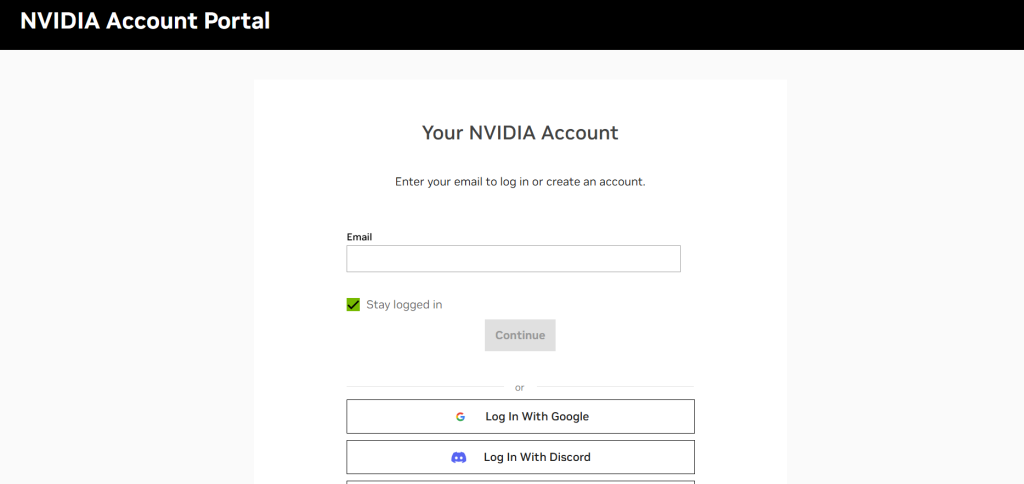
GeForce Now Setup:
- Create an account at geforcenow.com
- Download the GeForce Now app or use a browser on iOS
- Log in and link your Steam or Origin account
- Add Apex Legends to your GeForce Now library
Xbox Cloud Gaming Setup:
- Subscribe to Xbox Game Pass Ultimate
- Access xbox.com/play on Safari or use the Game Pass app
- Log in to your Microsoft account
- Find Apex Legends in the cloud library and launch it
3. Connect a Controller
Most cloud gaming services require a physical controller for optimal performance. Some also offer touchscreen support, but physical controllers provide a better competitive edge.
- Recommended Controllers:
- Xbox Wireless Controller
- Backbone One
- Razer Kishi
- How to Connect:
- Turn on Bluetooth on your mobile device
- Pair your controller through settings
- Make sure the controller is fully charged and compatible
4. Launch the Game and Start Playing
Once your accounts are linked and controller is connected:
- Open the cloud gaming app
- Select Apex Legends from your library
- Wait for the game to load via the cloud service
- Adjust game settings for smoother performance (graphics, audio, sensitivity)
Tips for Performance Optimization
Cloud gaming requires more than just a decent device. To ensure a seamless and competitive experience, consider the following performance tips:
Improve Your Network Stability
- Always use 5 GHz Wi-Fi rather than 2.4 GHz
- Avoid using mobile data unless on a strong 5G connection
- Keep your router close to the device
- Disconnect other devices from the network while gaming
Optimize Your Mobile Device
- Close all unused apps
- Turn off notifications to avoid interruptions
- Enable gaming mode if available
- Reduce screen brightness to prevent overheating
Adjust Streaming Settings
Each platform offers customization options:
- GeForce Now: Choose between “Balanced,” “Data Saver,” and “Competitive” modes
- Xbox Cloud Gaming: Use standard or enhanced settings based on your device capability
Changing these settings helps reduce lag and ensures smoother controls during intense matches.
Troubleshooting Common Cloud Gaming Issues
Despite best efforts, you may still run into occasional issues. Here’s how to solve them:
The Game is lagging or freezing
- Lower your resolution to 720p
- Restart your router or switch to a wired connection using an adapter
- Ensure no other heavy internet usage is occurring
Controller Not Working
- Unpair and reconnect the controller
- Update firmware if applicable
- Ensure compatibility with your chosen cloud platform
Game Not Loading
- Check if the cloud platform server is down
- Log out and log back into your account
- Clear the app cache or restart the browser
Apex Legends on Mobile Just Got Easier
With the right setup, cloud gaming allows you to enjoy Apex Legends on your mobile device without compromising on quality or performance. Services like GeForce Now and Xbox Cloud Gaming bring the full desktop and console experience directly to your pocket, removing the need for high-end devices.
From signing up to optimizing settings and solving potential issues, this guide is designed to help you get started confidently. As cloud technology continues to improve, mobile gaming will only get smoother and more immersive. Now you’re ready to drop in, anytime and anywhere.
Sources:
Apex Legends continues to evolve each season, demanding faster reflexes, smarter plays, and the right tools to stay ahead of the competition. Whether you’re grinding ranked or just jumping in for some casual games, fine-tuning your setup can make a real difference.
Looking to level up your gameplay? Check out our recommendations for the best mouse, best monitor, and best controller for Apex Legends in 2025. Dial in your performance further by optimizing your keybinds and tweaking your sensitivity to match your playstyle.
Your next clutch win might just be one upgrade away.
Worth Checking Out
If you’re serious about improving your Apex Legends experience, having the right gear can make a huge difference. Here are some top picks that stand out in 2025:
-
Best mouse for Apex Legends: The Razer Viper V2 Pro delivers lightweight precision and top-tier performance — a favorite among competitive players.
-
Best monitor for Apex Legends: The Asus ROG Swift PG27AQN offers blazing-fast refresh rates and stunning clarity, perfect for spotting enemies before they spot you.
-
Best controller for Apex Legends: The Xbox Elite Series 2 remains a top-tier choice for Xbox players, offering elite build quality and fully customizable controls.
Whether you’re on mouse and keyboard or controller, these picks are built to help you play your best.